

Google Maps CMS Element
Your map. Your style. Your choice.
Show locations in your Shopware Shopping Experiences. The Platform Plugin is available; the separate app is in preparation. Explore what the plugin does and ask me about the app.
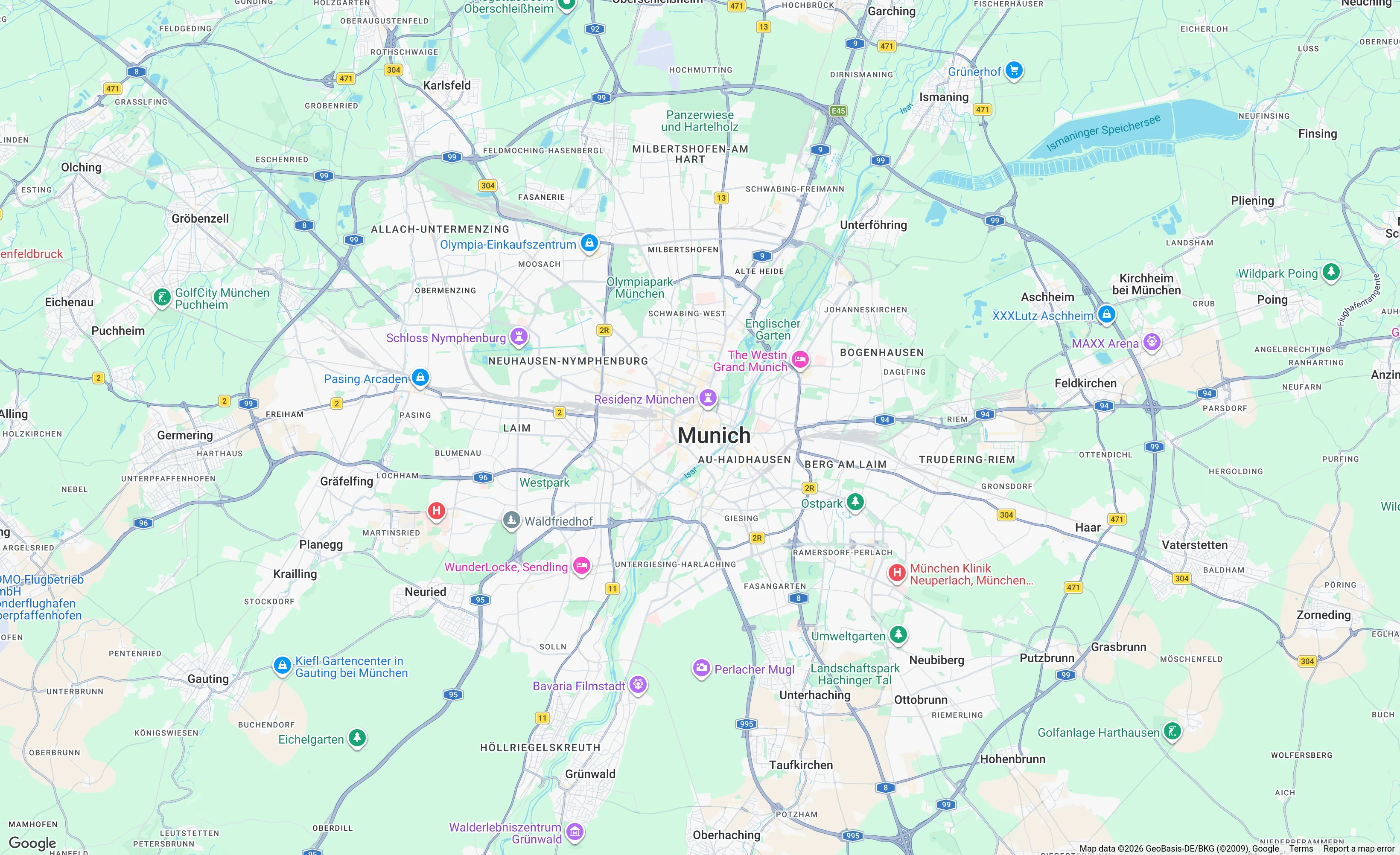
Map captures from the running Google Maps demo shop, live map after consent
Explore the Google Maps App
These Store images show the separate Google Maps App, not the Plugin. The Store link on this page leads to the Plugin.

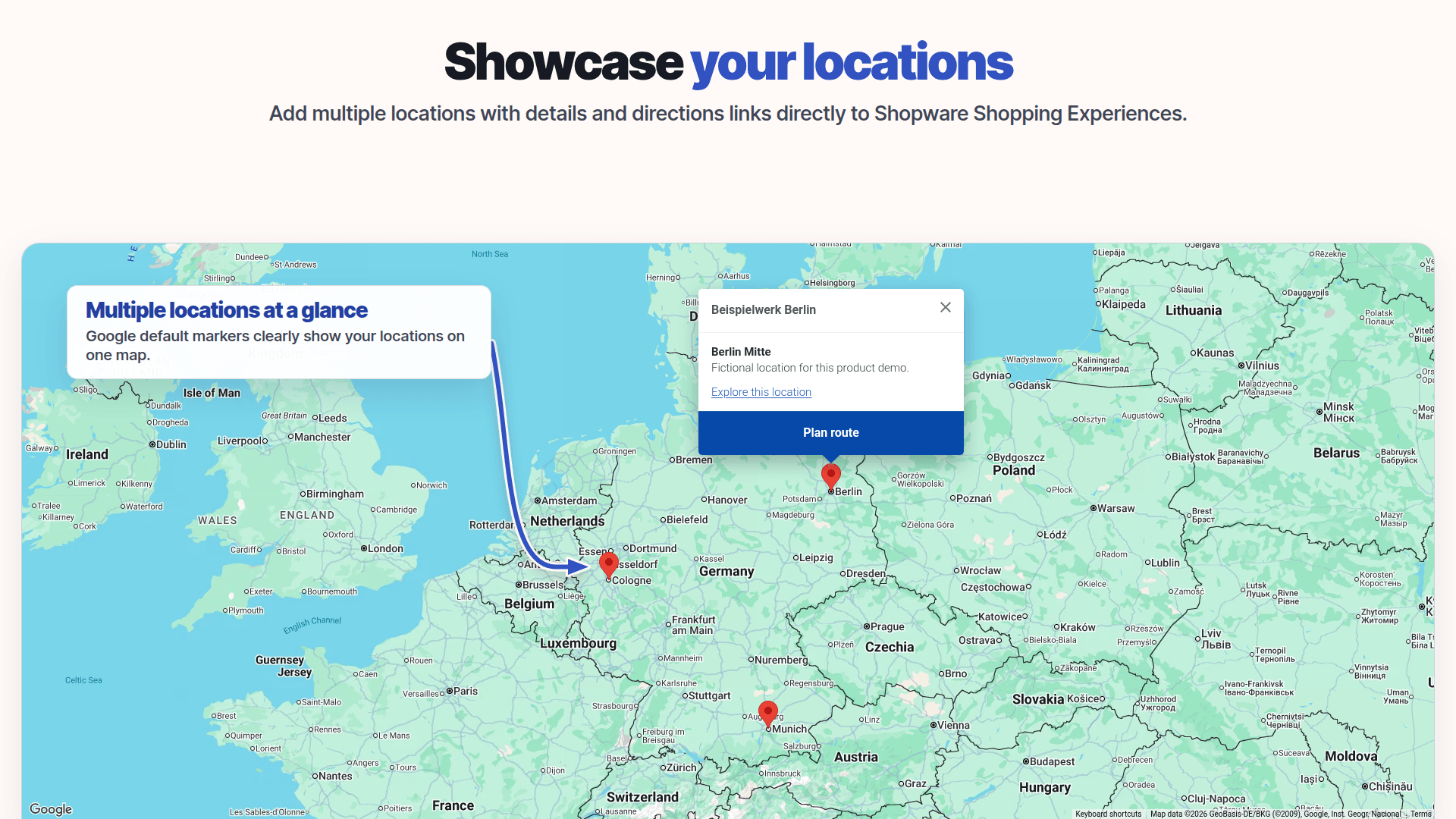
Show multiple locations on one map.
Use my Google Maps CMS Element App to display locations in a Shopware Shopping Experience. Markers and info windows help visitors find the right place.
- Show multiple markers in one Shopping Experience
- Display location details on the map
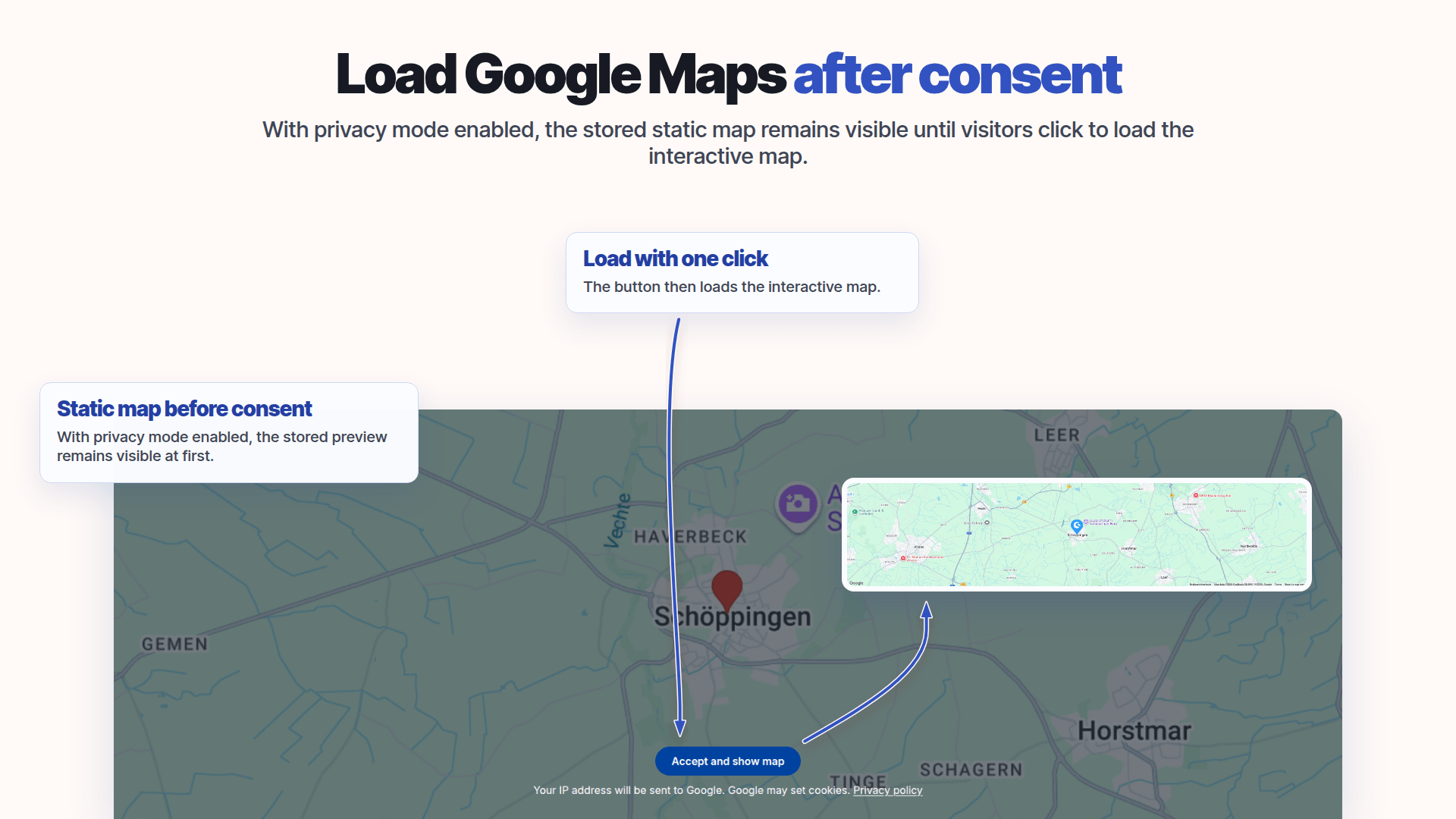
Load the interactive map after consent.
With privacy mode enabled, visitors first see a saved static map. The interactive Google Map loads only after they agree.
- Show a static map before consent
- Load Google Maps only after approval
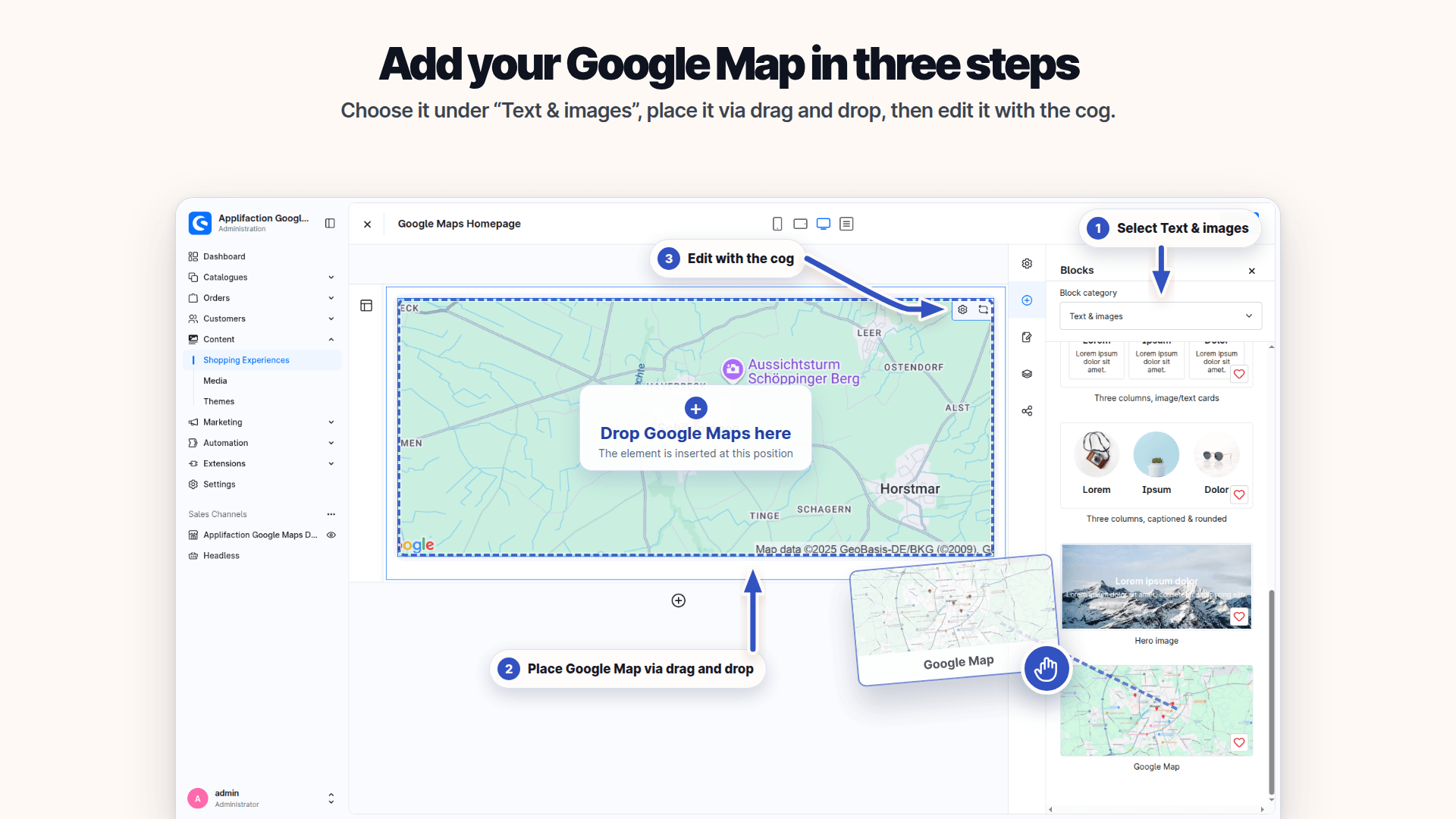
Add and edit the element in CMS.
Find the map element in Shopping Experiences and edit its settings directly in Shopware CMS.
- Find and add the element in CMS
- Edit the configuration there
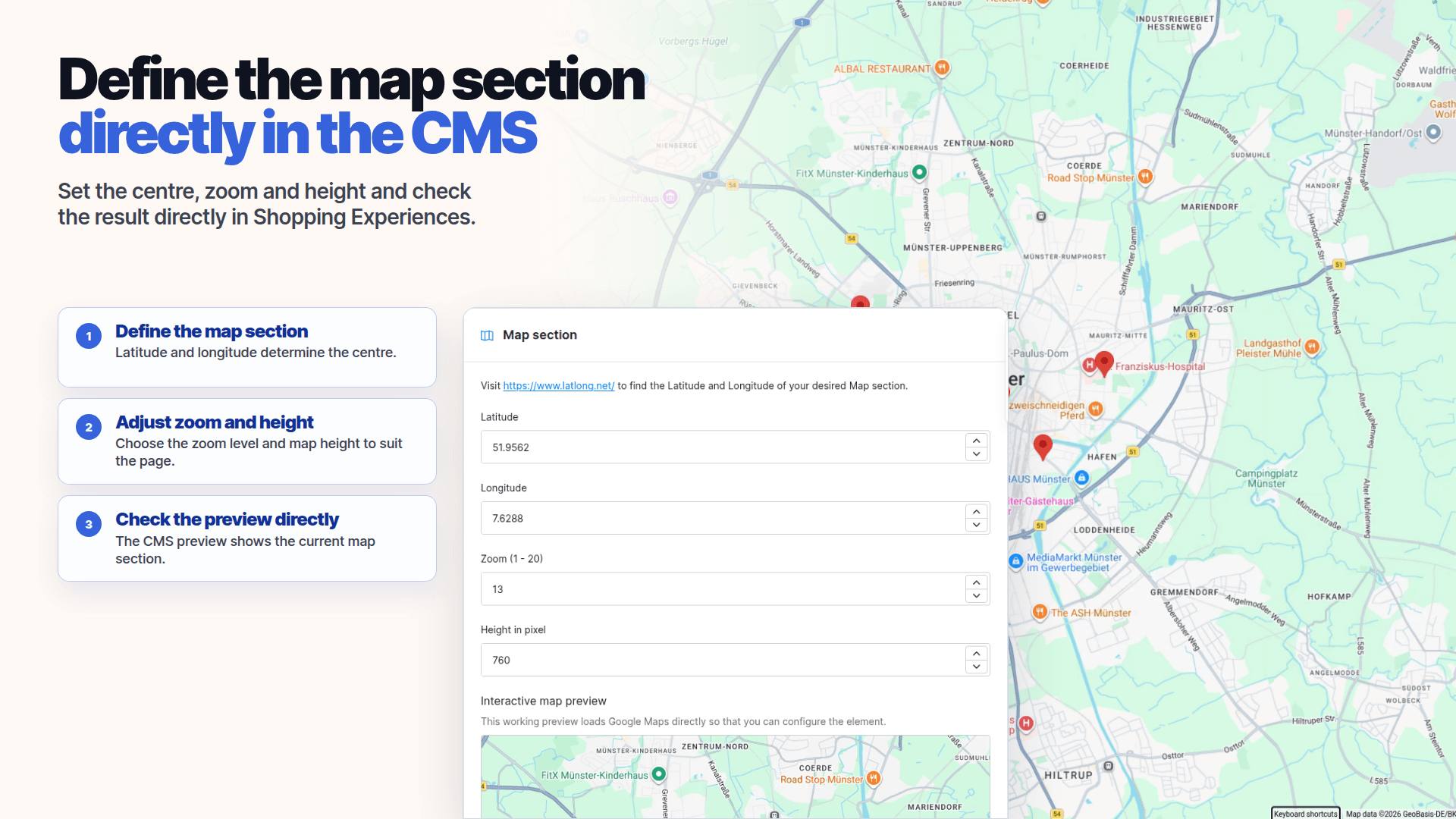
Set the map view yourself.
Set the centre, zoom and height in the CMS element and check the preview.
- Set the centre and zoom
- Check height and preview in CMS
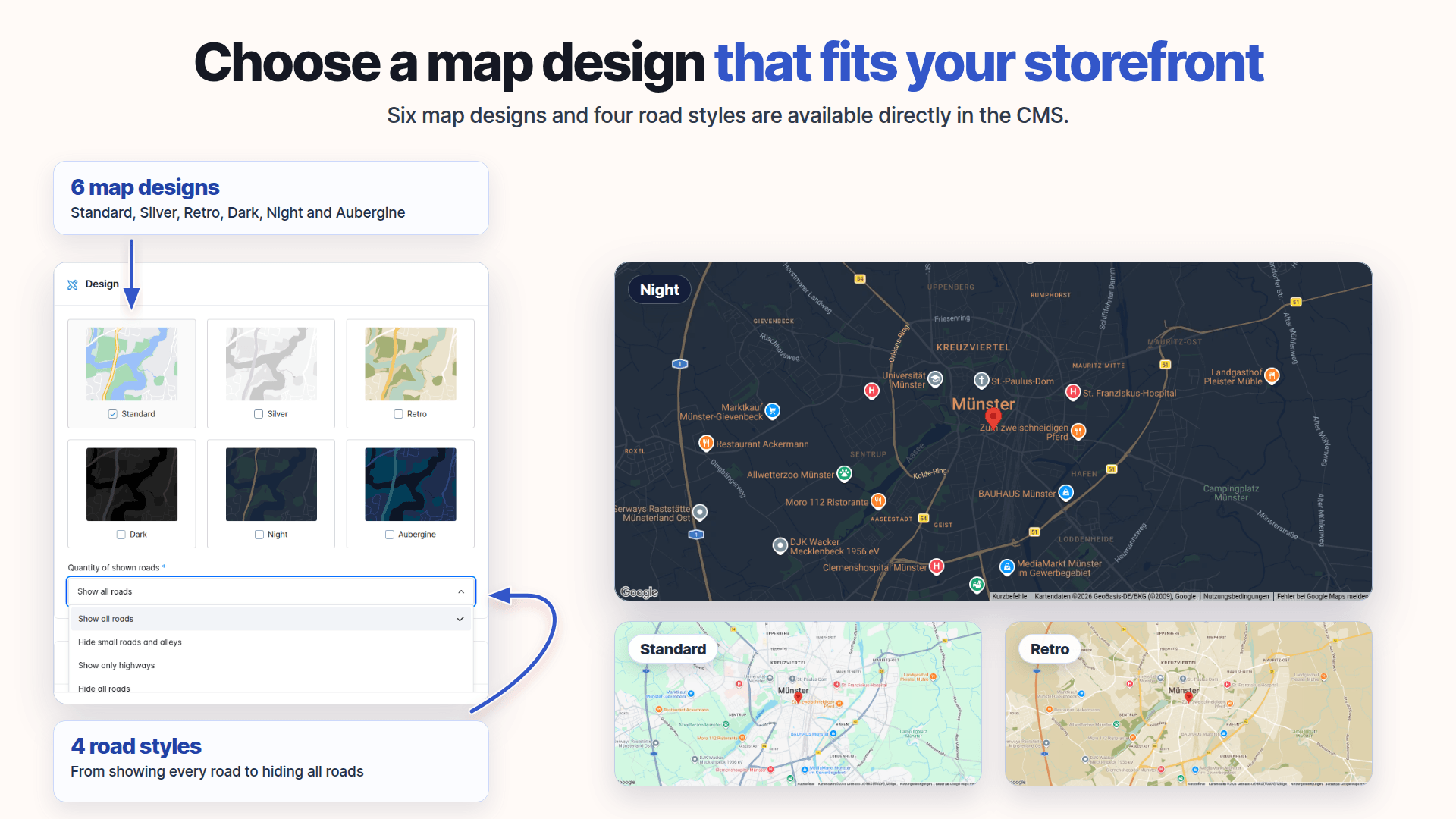
Match the map to the page.
Choose from six map styles to suit your storefront.
- Choose from six map styles
- Match the road style to the page
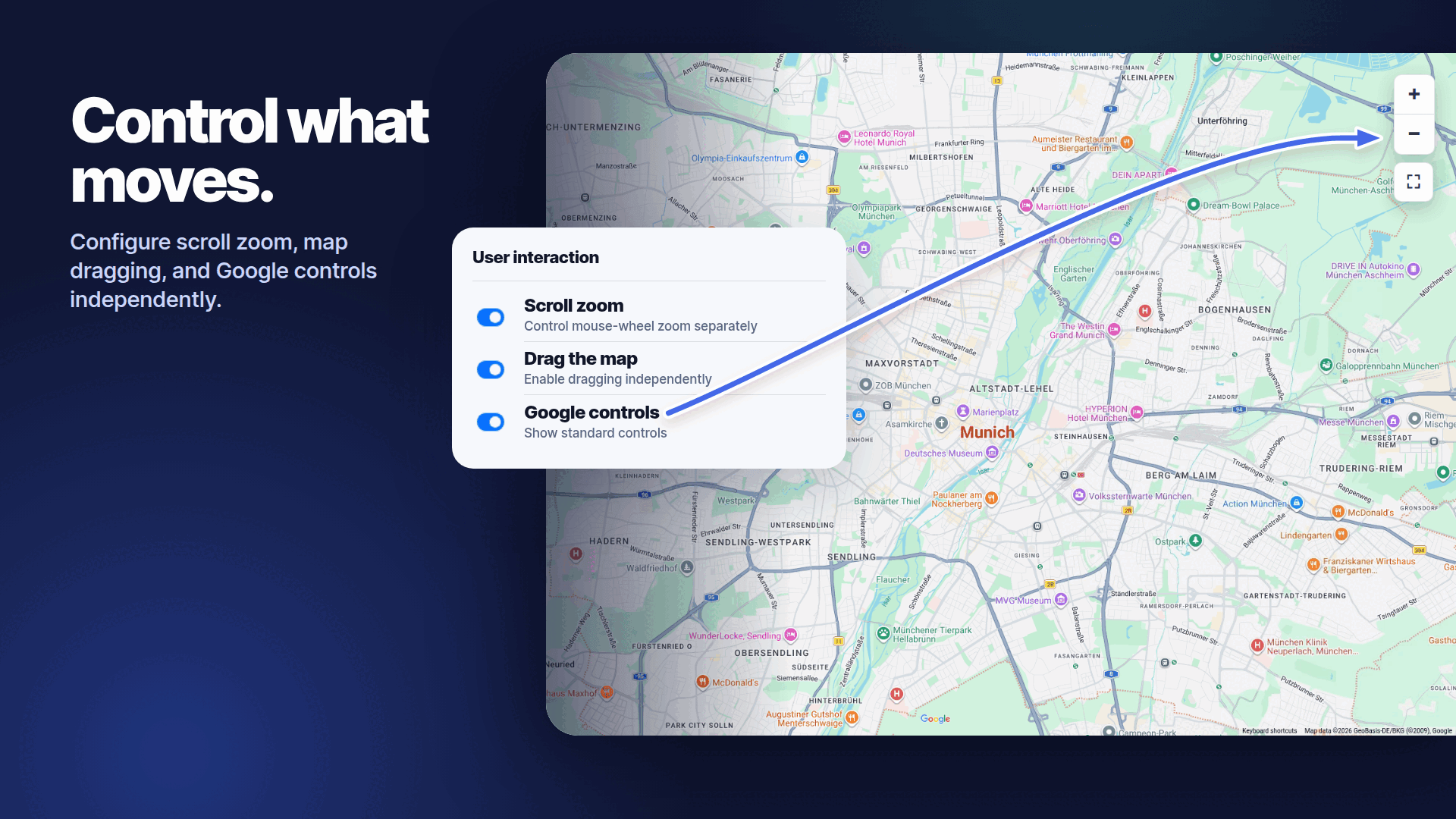
Choose how visitors use the map.
Control how visitors pan and zoom. Language and sales channel are also part of the shown configuration.
- Configure zoom and panning
- Take language and sales channel into account
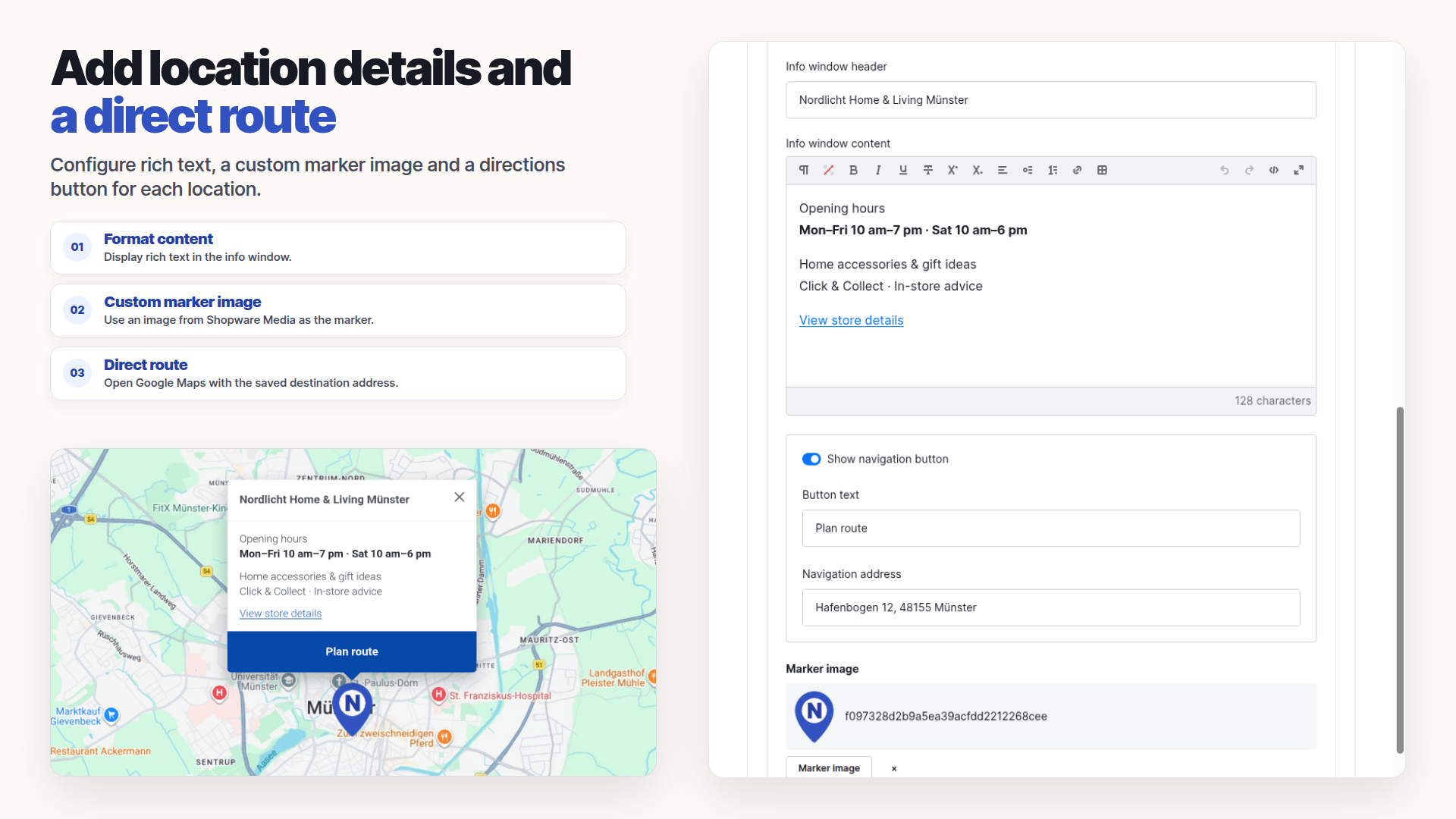
Details at each marker.
Add formatted information, a custom marker image and a directions link for each location.
- Show formatted info windows and a custom marker
- Link to directions for the location
Google Maps CMS Element for Shopware 6
Reviews for the Google Maps CMS Element for Shopware 6.
Reviews: Google Maps CMS Element for Shopware 6
1 review · Google Maps CMS Element

AWESome it works good